Facebook Ads Connector Troubleshooting
Incompatible Fields Selected
Description
Facebook Ads does not allow certain breakdown dimensions to be used together in the same report query. While these fields may seem compatible from a reporting perspective, Facebook enforces strict rules on how data can be grouped and segmented.
Each breakdown (for example, age, country, device, or platform) adds complexity to the query. When too many or incompatible breakdowns are selected together, Facebook is unable to aggregate the data reliably and rejects the request.
This is a Facebook Ads API limitation and not a Data Bloo issue.
How to fix
- Remove one or more breakdown fields from your chart.
- Avoid mixing demographic, geographic, and device/platform breakdowns in the same query.
- Create multiple charts instead of one complex chart, each focusing on a specific breakdown.
Invalid Field
Description
This error means that one of the fields selected in your report is not recognized by Facebook’s Ads API. This can happen when Facebook removes or deprecates a metric, when a field is only available at a specific reporting level, or when a field does not support the selected breakdowns.
Even if the field worked in the past, Facebook may no longer support it in certain contexts.
How to fix
- Remove the invalid field from your report.
- Open the Facebook Ads connector field list and select a supported alternative.
- If the error appeared after editing the report, undo recent field changes and re-add fields one by one.
Permission Required
Description
Your Facebook account does not have sufficient permissions to access the selected ad account’s data. Facebook strictly controls who can read advertising data, and access depends on your role in the ad account or Business Manager.
This error often occurs when:
- You are not the ad account owner
- You were added without reporting permissions
- The ad account belongs to a different Business Manager
- Permissions were recently changed or revoked
How to fix
- Ask the ad account owner to grant ads_read or ads_management permissions.
- Confirm your role in Facebook Business Manager.
- Reconnect the Facebook Ads data source after permissions are updated.
Session Invalidated
Description
Your authentication session is no longer valid. This usually happens when your access token expires, after a password or security change, or due to prolonged inactivity.
When this happens, Data Bloo can no longer access your data until a new token is generated.
How to fix
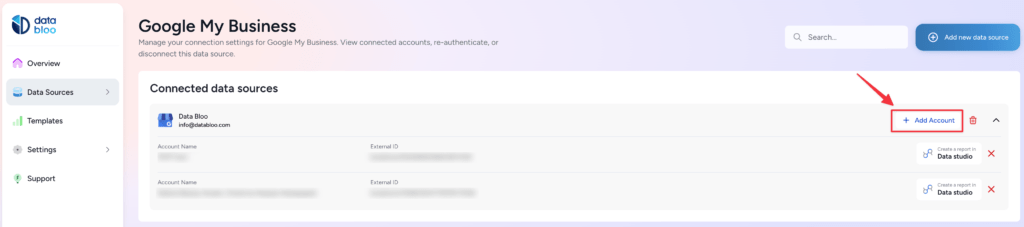
- Go to hub.databloo.com
- Select Data Sources
- Click Add Account
- Re-Select your account(s) or click Skip
- This will generate a new access token automatically
- Reload your Data Studio report after reconnecting
Your reports should start working again once the new token is generated.
Service Unavailable
Description
This error indicates a temporary service interruption between Data Bloo and Facebook’s API. It may be caused by Facebook API downtime, network instability, or short-term infrastructure issues.
These errors are usually transient and resolve automatically.
How to fix
- Wait a few minutes and try again
- Refresh the data source
- If the issue persists for a long time, contact Data Bloo support
Internal Server Error
Description
An unexpected error occurred while Facebook was processing the request. This usually means Facebook failed to complete the request internally due to temporary instability, high load, or system issues.
How to fix
- Wait a few minutes and retry
- Refresh the data source
- Contact Data Bloo support if the error continues
Authentication Expired
Description
Your connection is no longer authenticated. Data Bloo requires a valid session in order to retrieve your advertising data.
This usually happens when:
- The access token expired
- The token has been revoked
- Login credentials were changed
How to fix
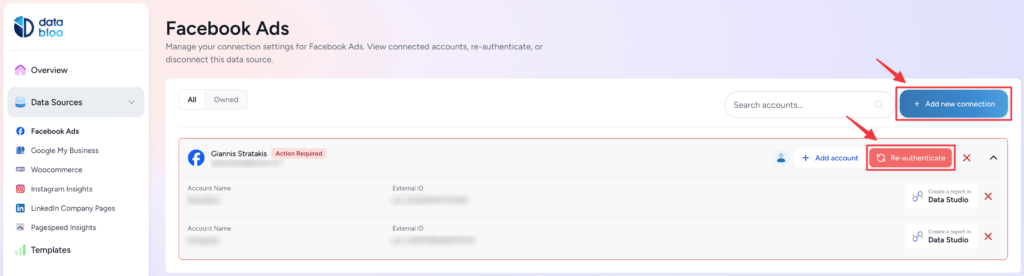
- Go to hub.databloo.com
- Click the Re-authenticate button on your connection
- If the button is not available, click Add new connection
- Reconnect your account
- Reload your Data Studio report
- Your reports should start working again after reconnecting.
Account Required
Description
No account is selected for this data source, so the connector has nothing to query.
Metrics and dimensions are tied to specific accounts. Without selecting at least one account, the query cannot run.
How to fix
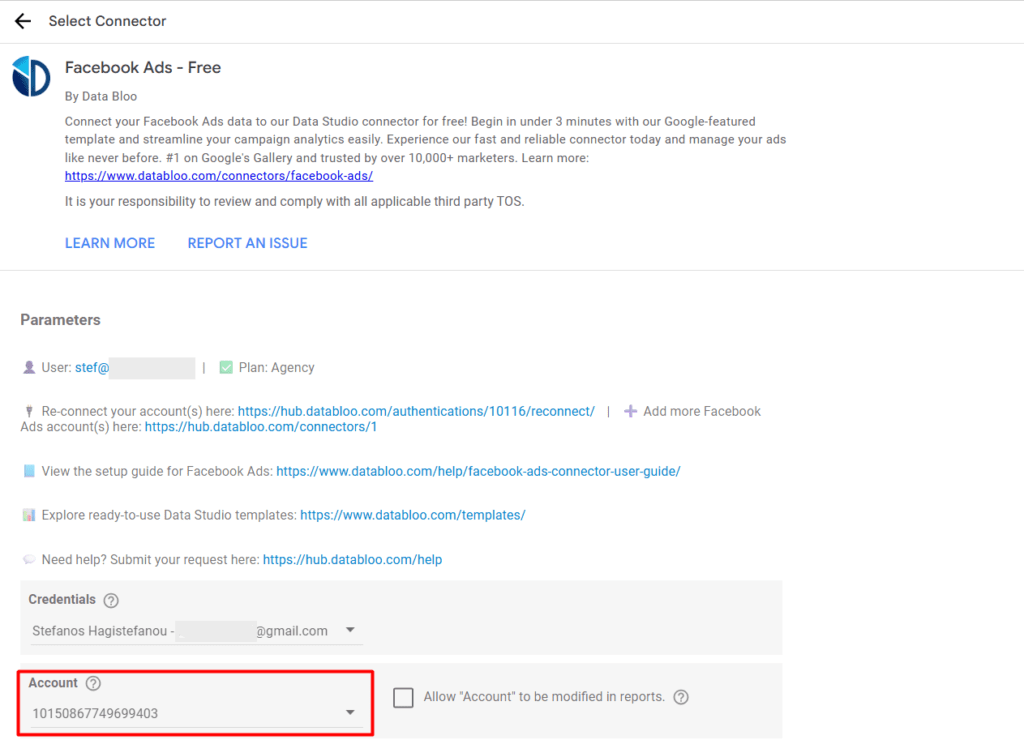
Option 1:
- Open the data source configuration page from your report (Edit data source → Edit connection)
- Under Account, select at least one account
- Click Reconnect or Connect to save the selection
- Refresh your Data Studio report
Option 2:
Reconnect your Facebook Ads data source directly here:
Reconnect Facebook Ads Connector
Your reports should start working again after reconnecting and selecting an account.
Quota Limit Exceeded
Description
This error means that too much data was requested in a short period of time. Large date ranges, multiple charts refreshing at once, or frequent manual refreshes can quickly exhaust Facebook’s data request limits.
How to fix
- Reduce the selected date range
- Remove unnecessary metrics or breakdowns
- Wait before refreshing again
API Rate Limit Exceeded
Description
Facebook limits how many API requests an application can make within a short time window. When this limit is exceeded, Facebook temporarily blocks further requests.
This often happens when dashboards contain many charts or when refreshes are triggered repeatedly.
How to fix
- Wait a few minutes before retrying
- Avoid frequent manual refreshes
- Schedule refreshes during off-peak hours
Request Timeout
Description
The request took too long to complete and was stopped by the server. This usually happens when Facebook needs to process a large dataset with many breakdowns or a long date range.
How to fix
- Reduce the date range
- Remove heavy breakdowns
- Split large charts into multiple smaller ones
Date Range Exceeded
Description
Facebook Ads only allows access to data from the last 37 months. Requests outside this range are automatically rejected.
How to fix
- Adjust your date range to stay within Facebook’s allowed period
- Reload the report
Invalid Date Range
Description
The selected start date is in the future. Facebook Ads does not allow reporting on future dates, even if campaigns are scheduled.
How to fix
- Update the date range to a valid past or current date
- Refresh the report
Daily API Limit Reached
Description
You have reached the daily API request limit for your Data Bloo plan. Once this limit is reached, further data requests are blocked until the next day.
How to fix
- Wait for the daily limit to reset
- Upgrade to Data Bloo Pro for unlimited API calls
General Best Practices
- Keep charts simple and focused
- Avoid mixing many breakdowns in one chart
- Use shorter date ranges for detailed analysis
- Split complex dashboards into multiple pages
- Prefer scheduled refreshes over frequent manual refreshes
Did this answer your question?