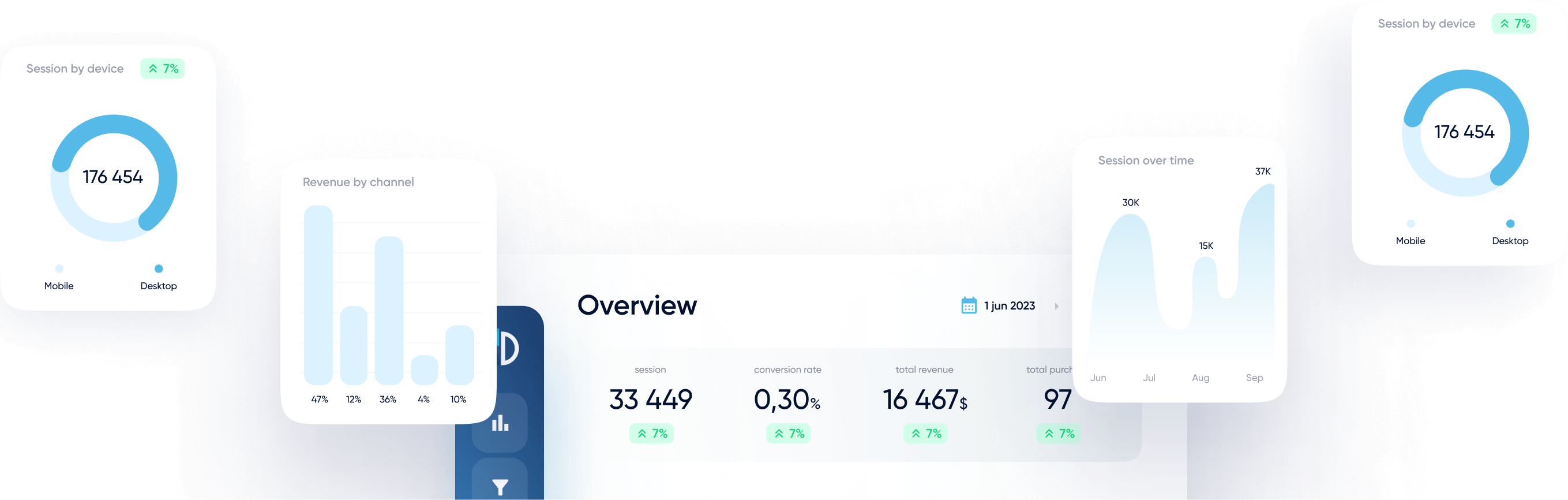
Click Sign in and log in using your Google account or email/password
Step 2: Add LinkedIn Ads Data Source
From the left-hand menu, go to Data Sources
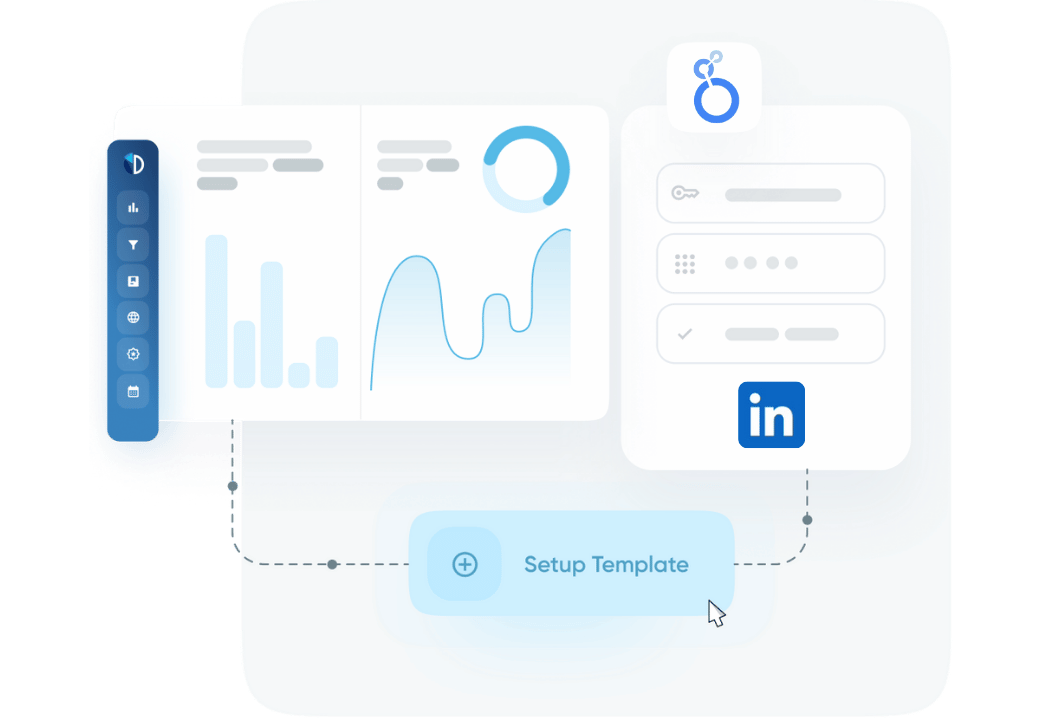
Click on the LinkedIn Ads tile under “Add new data source”
Step 3: Authorize Your LinkedIn Account
Click Connect with LinkedIn
You’ll be redirected to LinkedIn to authorize Data Bloo
Accept the requested permissions so Data Bloo can access your ads data
Step 4: Choose LinkedIn Ads Accounts
Select one or more LinkedIn Ads accounts you manage
Click Connect Selected Accounts
Step 5: Review Connection
Your connected ad accounts will now appear under the LinkedIn Ads data source
You can add or remove accounts as needed
Click Data Studio to proceed to your dashboard
Step 6: Authorize in Data Studio
Data Studio will prompt you to authorize the connector
Grant access for both the connector and LinkedIn Ads data
Click “Edit and share” in the top-right corner, then confirm with “Acknowledge and save”
Wait for the dashboard to finish loading before interacting with it
Step 7: View the LinkedIn Ads Report
Your Data Studio dashboard will now display LinkedIn Ads performance metrics such as:
Impressions, clicks, CTR
Spend and CPC
Conversions and conversion rate
Campaign, ad group, and ad-level performance
Time-based trends
Step 8 (Optional): Add Credentials or Switch Accounts
You can update the dashboard filters or switch between multiple LinkedIn Ads accounts.
This is useful when:
You manage multiple clients
You want to compare campaign performance over time
You need tailored views for different stakeholders or clients
How to Edit the Data Source Configuration
Open your Data Studio report
In the top menu, go to Resource > Manage added data sources
Click Edit next to the LinkedIn Ads data source
Select Edit connection in the schema view
Modify Account and Reporting Settings
Switch to a different LinkedIn Ads account
Adjust selected metrics and dimensions
Apply filters by campaign, date range, or objective
Finalize Changes
Click Reconnect
Confirm your choices by selecting Apply
Your report will now reflect the updated data source configuration
Troubleshooting
Issue
Solution
LinkedIn Ads accounts not visible
Verify permissions in LinkedIn Campaign Manager
No data shown
Ensure you have advertiser access to the selected LinkedIn Ads account
Only partial data appears
Review selected date range and applied filters
OAuth window didn’t appear
Turn off pop-up blockers and make sure you’re signed in with the correct Google and LinkedIn Ads accounts.
Bad Request (400)
Reauthorize using the same LinkedIn account across Data Bloo and Data Studio.
Notes
Data Security: Data Bloo does not store your LinkedIn Ads data. All access is secure and read-only through LinkedIn’s API.
Multi-Account Reporting: Combine multiple LinkedIn Ads accounts into a single dashboard for cross-account performance tracking.
Why connect your LinkedIn Ads to our Data Studio connector?
Improve your advertising analytics effortlessly with our fast, and reliable Data Studio connector for LinkedIn Ads.
01
Free Plan Available
Start for free with 1 account per connector and up to 300 daily refreshes (API calls). Perfect for testing, small accounts, and building your first dashboards.
02
Ready to Use Template
Start analyzing your campaigns instantly with a pre-built report designed for LinkedIn Ads performance.
03
Fast, Reliable Connection
Experience rapid data refreshes and dependable access to your advertising metrics.
04
Multiple Accounts
Use one connector for multiple ad accounts — perfect for agencies and performance teams managing several clients.
FAQ
You cannot find your question? Feel free to contact us
Sign in to Data Bloo, connect your LinkedIn account, authorize the connector in Data Studio, and start using the ready-to-use report template.
Yes, the connector includes a Free plan that allows you to connect 1 account per connector with up to 300 daily refreshes (API calls). You can upgrade anytime to connect multiple accounts and increase refresh limits.
If the daily refresh limit is reached, the connector will temporarily pause additional refresh requests until the next day. Upgrading to a paid plan increases the refresh limits.
The connector retrieves data through the LinkedIn Marketing API. You can refresh your Data Studio report anytime to request updated data.
Yes. Your LinkedIn account must have advertiser or account manager permissions for the LinkedIn Ads account you want to connect.