









What Is an SEO Report Template?
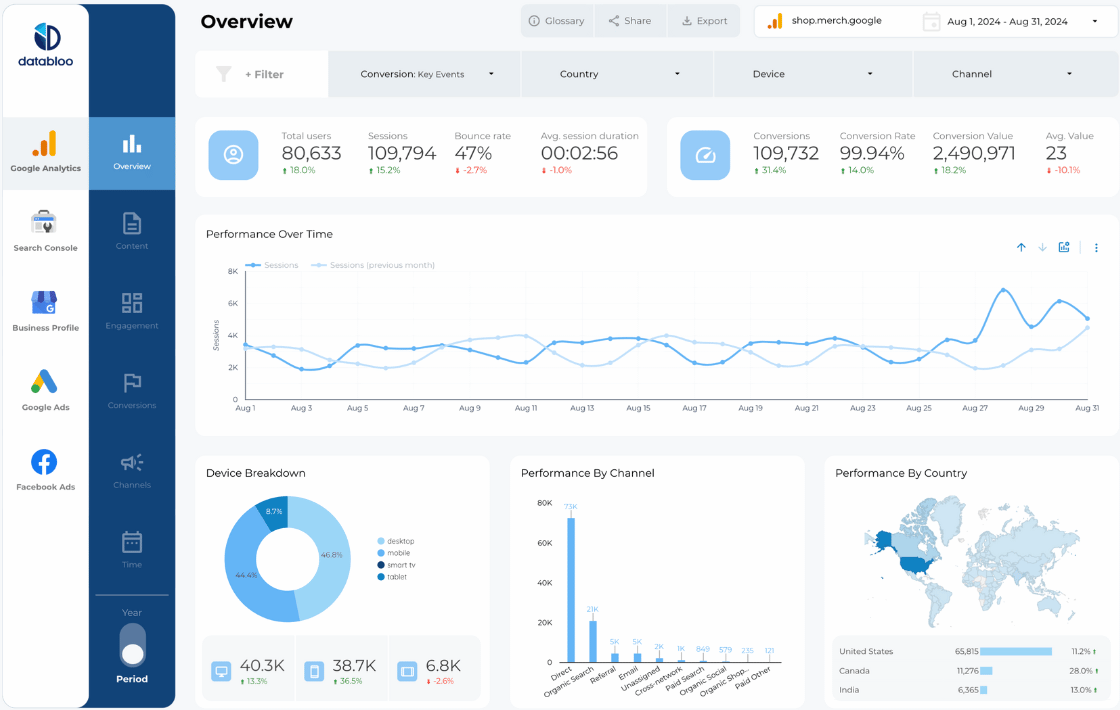
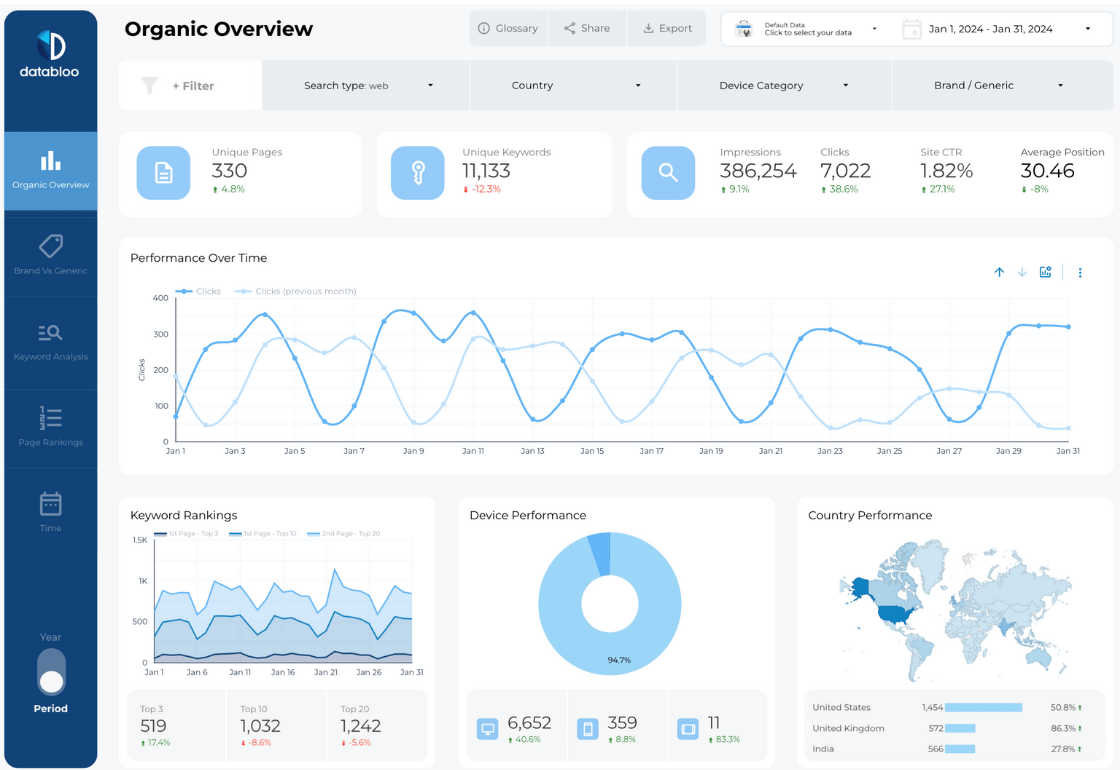
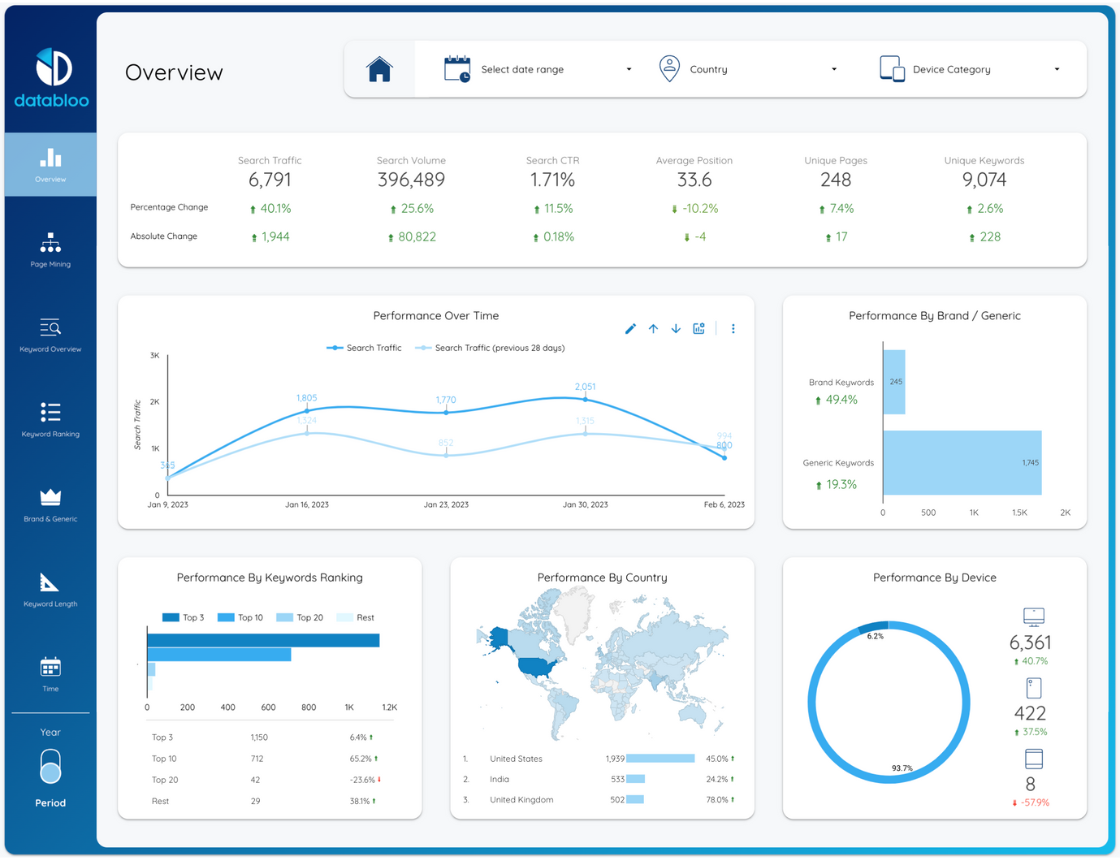
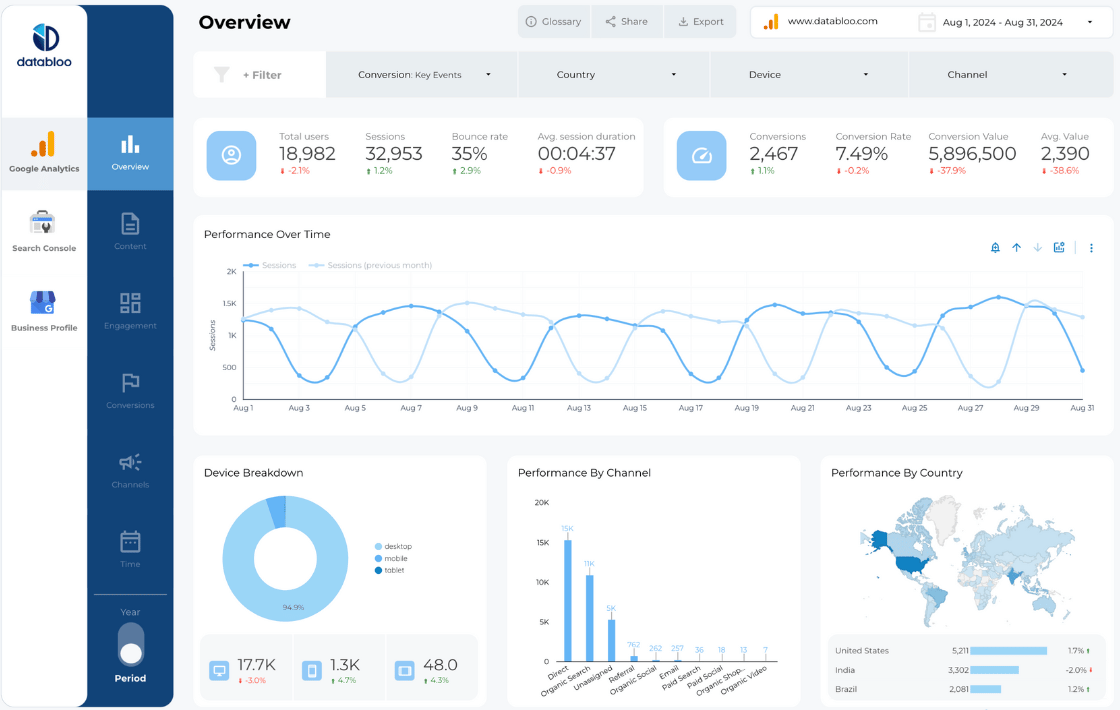
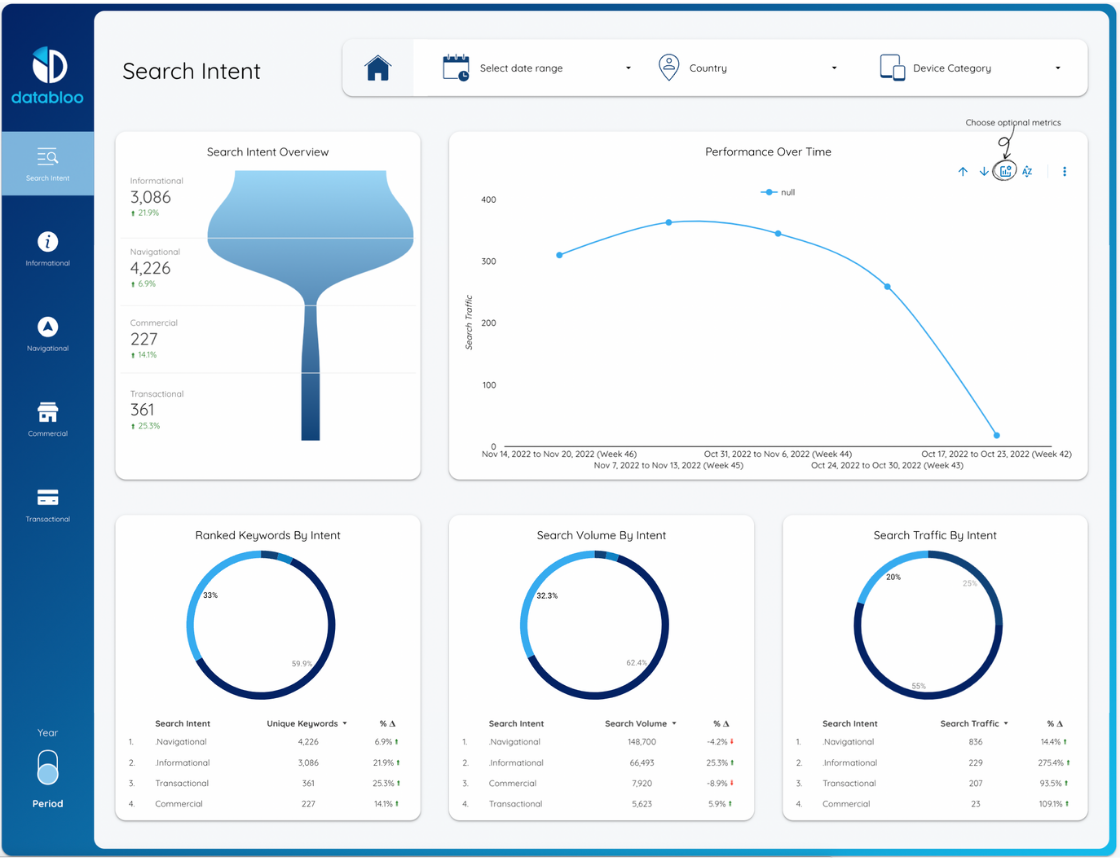
An SEO report template is a pre-built Data Studio dashboard that visualizes organic search performance in a structured, easy-to-understand format.
Instead of manually exporting data from Google Search Console or Google Analytics, an SEO dashboard template centralizes all key organic metrics into one automated report. It allows you to monitor rankings, traffic trends, clicks, impressions, engagement signals, and conversion impact — without switching between multiple tools.
Modern SEO reporting templates are built specifically for GA4’s event-based data model and Search Console’s query-level insights. This makes them especially useful for identifying content opportunities, diagnosing performance drops, and understanding how organic traffic contributes to overall business goals.
Rather than showing raw data, a well-designed SEO report template organizes information into clear sections that support faster analysis and better decision-making.
Why Use an SEO Reporting Template?
Using an SEO reporting template helps you move from manual reporting to structured, repeatable analysis.
Instead of recreating the same report every month, you can rely on an automated dashboard that updates in real time. This ensures data accuracy and saves hours of manual work.
With an SEO reporting template, you can:
- Track organic traffic growth and search visibility trends
- Monitor impressions, clicks, and CTR from Google Search Console
- Analyze keyword and query performance to identify ranking opportunities
- Measure landing page engagement and content effectiveness
- Compare performance month-over-month or year-over-year
- Present client-ready reports with consistent formatting
- Eliminate spreadsheet errors and manual exports
Beyond efficiency, these templates improve clarity. Stakeholders can instantly understand performance trends without needing technical SEO knowledge.
Automated dashboards make SEO reporting faster, clearer, and more scalable — especially for agencies managing multiple properties.
What’s Included in Our SEO Report Templates?
Each SEO report template includes a carefully structured set of metrics and visualizations designed to support both high-level overviews and detailed analysis.
Core reporting sections typically include:
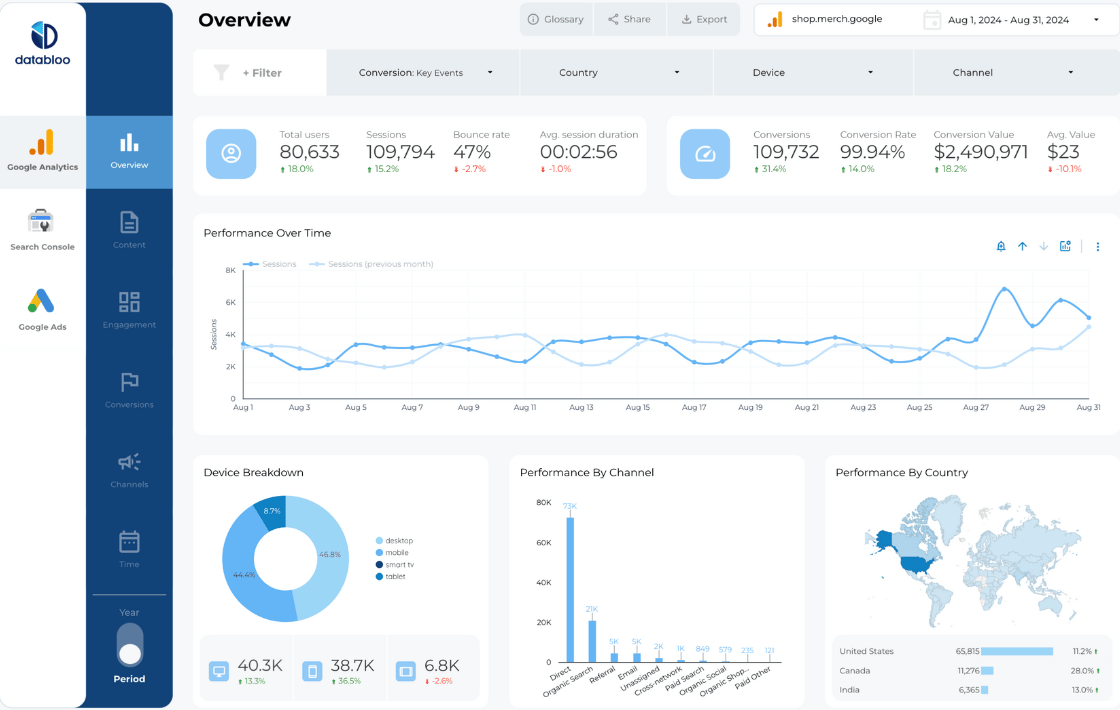
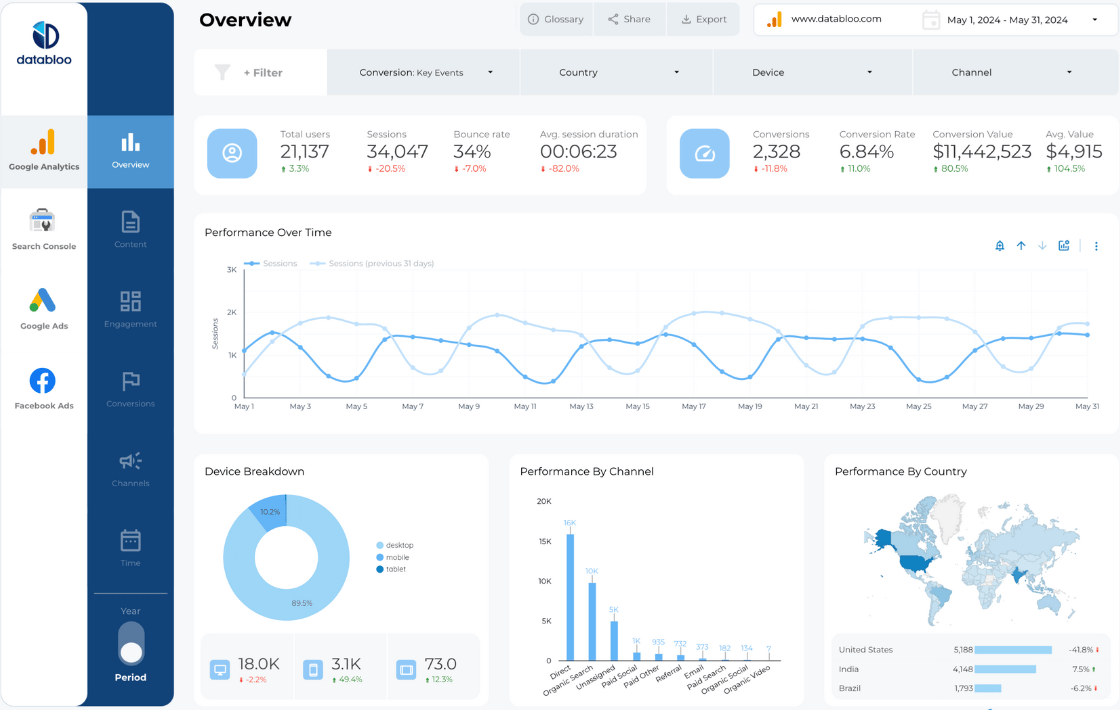
- Organic traffic and sessions from GA4
- Impressions, clicks, and CTR from Google Search Console
- Top-performing queries and keyword groups
- Landing page performance and engagement metrics
- Device and country segmentation
- Conversion tracking and goal performance via GA4
- Period-over-period comparisons for growth tracking
Many templates also include content-level breakdowns and query clustering views, making it easier to identify which topics drive visibility and which pages need optimization.
The goal isn’t to show every available metric — it’s to highlight the KPIs that support strategic SEO decisions.
All templates are fully customizable, allowing you to adjust filters, visuals, metrics, and branding based on your workflow or client requirements.
Designed for Agencies, Marketers & In-House Teams
These SEO report templates are built for professionals who need consistent and scalable reporting.
They’re particularly valuable for:
- SEO specialists and consultants who need structured monthly reporting
- Digital marketing agencies managing multiple clients
- Growth and content teams optimizing organic acquisition
- Ecommerce and lead generation businesses tracking revenue from search
Because the dashboards are automated and duplicable, they allow teams to scale reporting across multiple websites without increasing manual workload.
Whether you manage one domain or dozens, the reporting structure remains consistent and easy to maintain.
FAQs
An SEO report template is a Data Studio dashboard that visualizes organic search performance using data from Google Search Console and GA4. It structures traffic, keyword, and conversion data into a clear and shareable format.
Yes. Most templates can be duplicated and connected to multiple Search Console properties and GA4 accounts, making them suitable for agencies and multi-site businesses.
Yes. Query and keyword performance from Google Search Console are included, allowing you to analyze impressions, clicks, and CTR at both the query and page level.
Yes — they’re specifically designed for agencies managing multiple SEO clients and recurring reporting cycles. The dashboards are structured to support both detailed analysis and executive summaries.
Absolutely. You can customize metrics, filters, branding, layout, and comparisons directly in Data Studio to match your reporting needs.