Force Refresh Data (Fix Stale / Cached Data)
“Data Not Updating”
If your report is showing outdated or “stuck” data, this is usually caused by Looker Studio caching previously fetched results.
This means that even if your data source (e.g. Facebook Ads, Instagram) has updated, your report may still display older values.
This is a common behavior in Looker Studio and can affect all 3rd party connectors (data freshness: 12 hours).
Step-by-Step Instructions
- Enter Edit Mode
Open your Looker Studio report and click on Edit. - Manage Data Sources
From the top menu, click on Resource → Manage added data sources. - Edit Data Source
Find the data source used in your report and click Edit. - Force Refresh
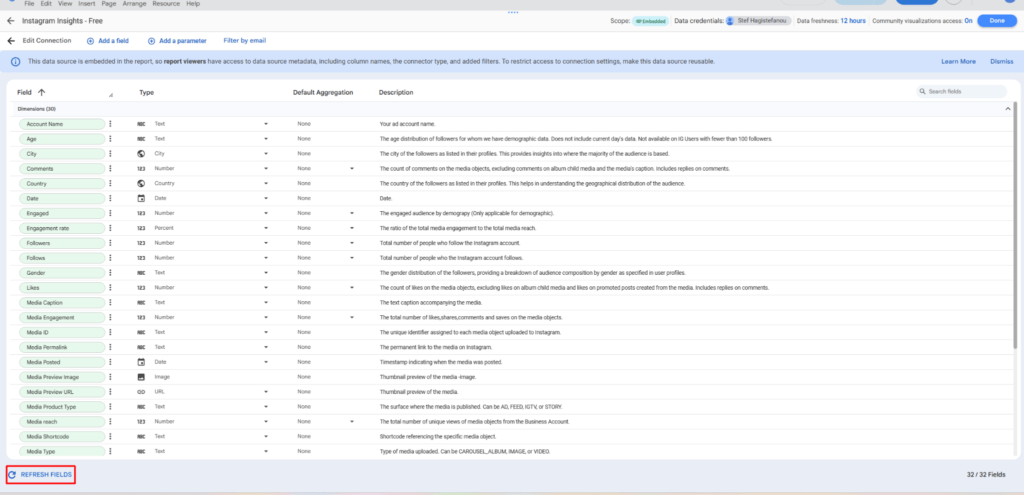
In the data source editor, click REFRESH FIELDS (bottom-left). - Apply Changes
Click Apply to confirm.
Why this works
Although “Refresh Fields” is designed for updating the data schema, it also forces Looker Studio to reconnect to the data source.
This process clears cached results and triggers a fresh data request, ensuring your report reflects the latest available data.
Did this answer your question?