Bing Webmaster Tools Connector Troubleshooting
Invalid Field
Description
This error means that one of the fields selected in your report is not recognized by Bing’s API. This can happen when Bing removes or deprecates a metric, when a field is only available at a specific reporting level, or when a field does not support the selected breakdowns.
Even if the field worked in the past, Bing may no longer support it in certain contexts.
How to fix
- Remove the invalid field from your report.
- Open the Bing Webmaster Tools connector field list and select a supported alternative.
- If the error appeared after editing the report, undo recent field changes and re-add fields one by one.
Session Invalidated
Description
Your authentication session is no longer valid. This usually happens when your access token expires, after a password or security change, or due to prolonged inactivity.
When this happens, Data Bloo can no longer access your data until a new token is generated.
How to fix
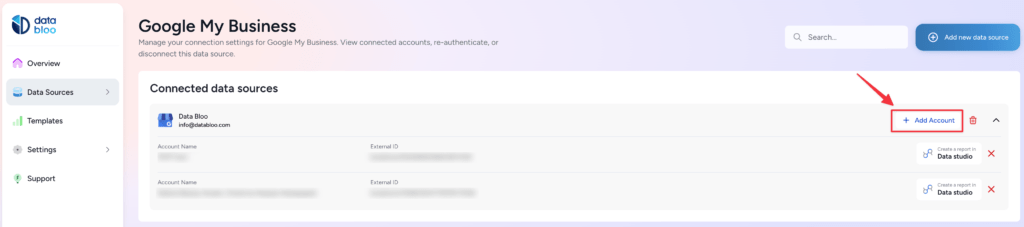
- Go to hub.databloo.com
- Select Data Sources
- Click Add Account
- Re-Select your account(s) or click Skip
- This will generate a new access token automatically
- Reload your Data Studio report after reconnecting
Your reports should start working again once the new token is generated.
Service Unavailable
Description
This error indicates a temporary service interruption between Data Bloo and Bing’s API. It may be caused by Bing API downtime, network instability, or short-term infrastructure issues.
These errors are usually transient and resolve automatically.
How to fix
- Wait a few minutes and try again
- Refresh the data source
- If the issue persists for a long time, contact Data Bloo support
Internal Server Error
Description
An unexpected error occurred while Bing was processing the request. This usually means Bing failed to complete the request internally due to temporary instability, high load, or system issues.
How to fix
- Wait a few minutes and retry
- Refresh the data source
- Contact Data Bloo support if the error continues
Authentication Expired
Description
Your connection is no longer authenticated. Data Bloo requires a valid session in order to retrieve your data.
This usually happens when:
- The access token expired
- The token has been revoked
- Login credentials were changed
How to fix
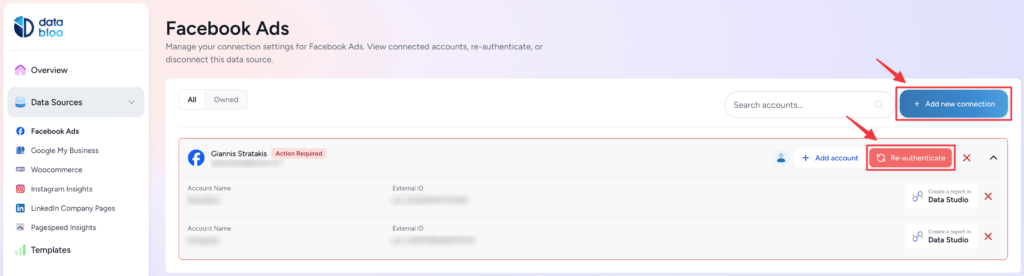
- Go to hub.databloo.com
- Click the Re-authenticate button on your connection
- If the button is not available, click Add new connection
- Reconnect your account
- Reload your Data Studio report
- Your reports should start working again after reconnecting.
Account Required
Description
No account is selected for this data source, so the connector has nothing to query.
Metrics and dimensions are tied to specific accounts. Without selecting at least one account, the query cannot run.
How to fix
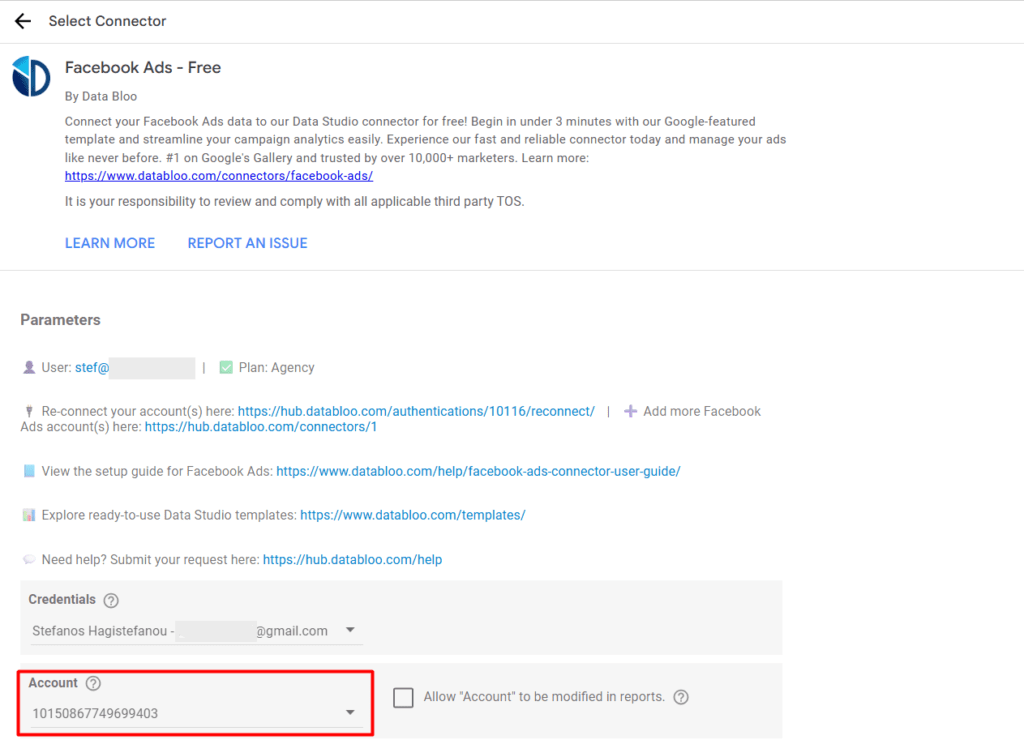
Option 1:
- Open the data source configuration page from your report (Edit data source → Edit connection)
- Under Account, select at least one account
- Click Reconnect or Connect to save the selection
- Refresh your Data Studio report
Option 2:
Reconnect your data source directly here:
Reconnect Bing Webmaster Tools Connector
Your reports should start working again after reconnecting and selecting an account.
Quota Limit Exceeded
Description
This error means that too much data was requested in a short period of time. Large date ranges, multiple charts refreshing at once, or frequent manual refreshes can quickly exhaust Bing’s data request limits.
How to fix
- Reduce the selected date range
- Remove unnecessary metrics or breakdowns
- Wait before refreshing again
API Rate Limit Exceeded
Description
Bing limits how many API requests an application can make within a short time window. When this limit is exceeded, Bing temporarily blocks further requests.
This often happens when dashboards contain many charts or when refreshes are triggered repeatedly.
How to fix
- Wait a few minutes before retrying
- Avoid frequent manual refreshes
- Schedule refreshes during off-peak hours
Request Timeout
Description
The request took too long to complete and was stopped by the server. This usually happens when Bing needs to process a large dataset with many breakdowns or a long date range.
How to fix
- Reduce the date range
- Remove heavy breakdowns
- Split large charts into multiple smaller ones
Invalid Date Range
Description
The selected start date is in the future. Bing does not allow reporting on future dates.
How to fix
- Update the date range to a valid past or current date
- Refresh the report
Daily API Limit Reached
Description
You have reached the daily API request limit for your Data Bloo plan. Once this limit is reached, further data requests are blocked until the next day.
How to fix
- Wait for the daily limit to reset
- Upgrade to Data Bloo Pro for unlimited API calls
General Best Practices
- Keep charts simple and focused
- Avoid mixing many breakdowns in one chart
- Use shorter date ranges for detailed analysis
- Split complex dashboards into multiple pages
- Prefer scheduled refreshes over frequent manual refreshes
Did this answer your question?