Force Refresh After Upgrading Your Connector Plan
If you recently upgraded from Free → Pro or Agency, you may still see:
- API limit errors
- Account limit errors
This happens because Looker Studio caches your data source for up to 12 hours — so your report may still behave as if you’re on the Free plan.
How to Fix It (3 Quick Ways)
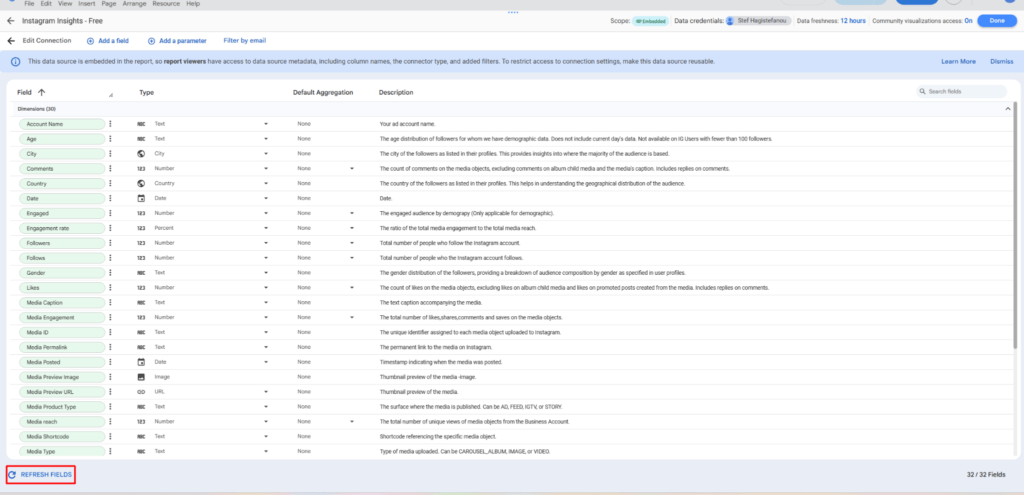
Method 1 — Refresh Fields
This forces Looker Studio to reload the schema and remove cached limits.
- Open your report
- Click Edit
- Go to Resource → Manage added data sources
- Click Edit on your Data Bloo connector
- Click Refresh Fields (bottom left)
- Click Apply
This will update your data source to reflect your new plan limits.
Method 2 — Re-authenticate the Connector
This resets your connector credentials and clears cached permissions.
Important:
Re-authentication must be done from inside Looker Studio, not from the Data Bloo Hub.
Steps:
- Open your report in Looker Studio
- Click Edit
- Go to Resource → Manage added data sources
- Click Edit on your Data Bloo connector
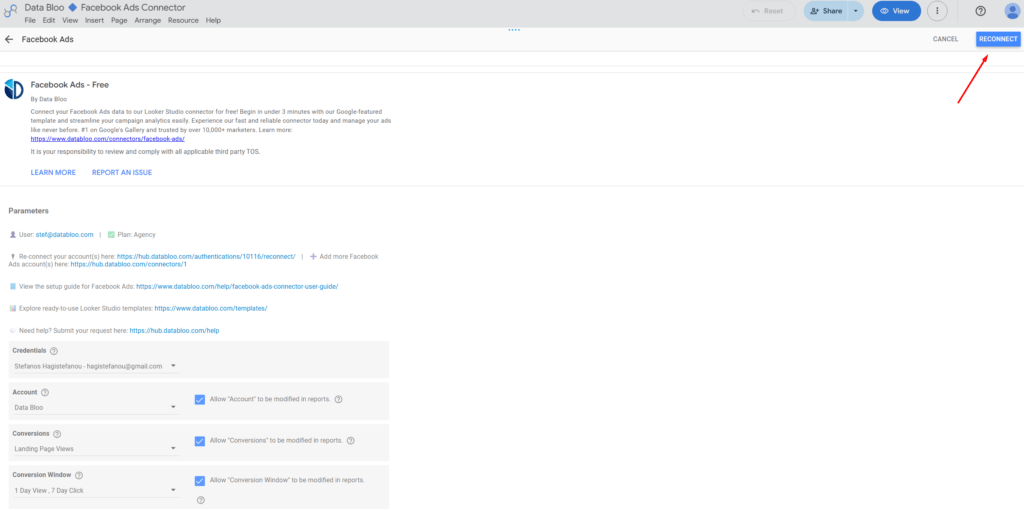
- Click Edit Connection (top left)
- You will be redirected to the connector page
- Select your credentials
- Click Reconnect (top right)
- Complete authentication
- Return to your report and refresh
Method 3 — Use the Direct Connector Links
If you prefer, you can re-authenticate directly using the links below:
- Facebook Ads
- LinkedIn Ads
- Google Business Profile
- Bing Webmaster Tools
- WooCommerce
- Facebook Insights
- Instagram Insights
- LinkedIn Company Pages
- TikTok Organic
- Google Search Console
- Microsoft (Bing) Ads
Did this answer your question?