LinkedIn Company Pages Connector Troubleshooting
Connector Update Required
Description
This error appears when the LinkedIn Company Pages connector version you are using has been deprecated and is no longer supported. LinkedIn regularly updates its APIs, and older connector versions are disabled to ensure security, data accuracy, and compatibility.
When this happens, Data Bloo can no longer fetch data using the outdated connector.
How to fix
- Go to hub.databloo.com
- Disconnect the existing LinkedIn Company Pages data source
- Reconnect it to automatically use the latest connector version
- Refresh your report after reconnecting
Authentication Expired
Description
Your connection is no longer authenticated. Data Bloo requires a valid session in order to retrieve your data.
This usually happens when:
- The access token expired
- The token has been revoked
- Login credentials were changed
How to fix
- Go to hub.databloo.com
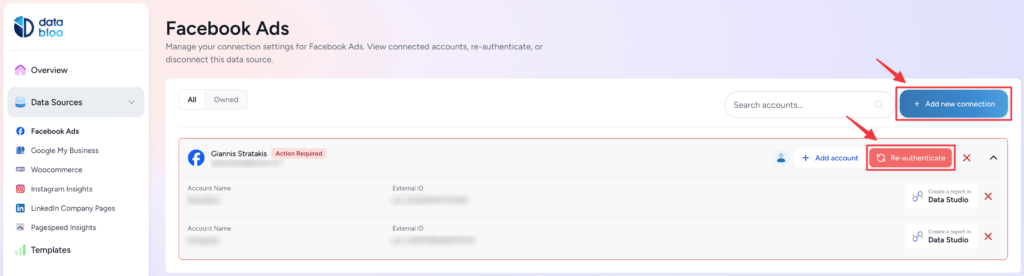
- Click the Re-authenticate button on your connection
- If the button is not available, click Add new connection
- Reconnect your account
- Reload your Data Studio report
- Your reports should start working again after reconnecting.
Account Required
Description
No account is selected for this data source, so the connector has nothing to query.
Metrics and dimensions are tied to specific accounts. Without selecting at least one account, the query cannot run.
How to fix
Option 1:
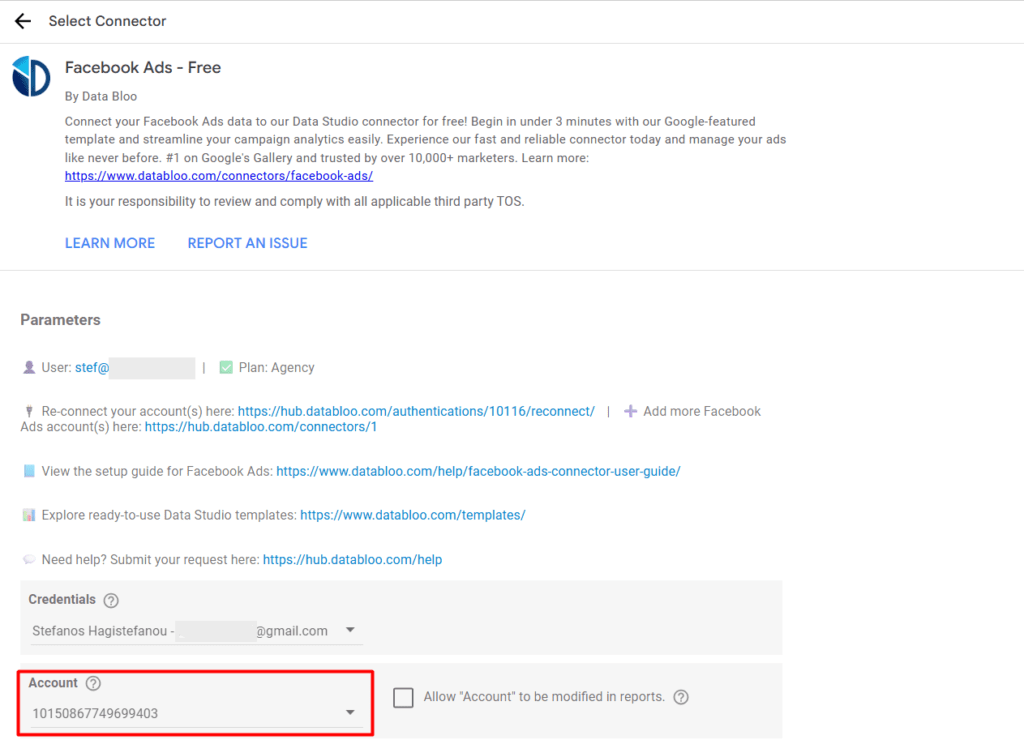
- Open the data source configuration page from your report (Edit data source → Edit connection)
- Under Account, select at least one account
- Click Reconnect or Connect to save the selection
- Refresh your Data Studio report
Option 2:
Reconnect your LinkedIn Pages data source directly here:
Reconnect LinkedIn Pages Connector
Your reports should start working again after reconnecting and selecting an account.
Permission Required
Description
Your LinkedIn account does not have sufficient permissions to access the selected Company Page. LinkedIn restricts Company Page analytics to owners and users with specific admin roles.
This error commonly occurs when:
- You are not an admin of the Company Page
- Your admin role was removed or changed
- The page belongs to a different organization
How to fix
- Ask the Company Page owner to grant you admin or analyst permissions
- Confirm your role in LinkedIn Page settings
- Reconnect the data source after permissions are updated
Session Invalidated
Description
Your authentication session is no longer valid. This usually happens when your access token expires, after a password or security change, or due to prolonged inactivity.
When this happens, Data Bloo can no longer access your data until a new token is generated.
How to fix
- Go to hub.databloo.com
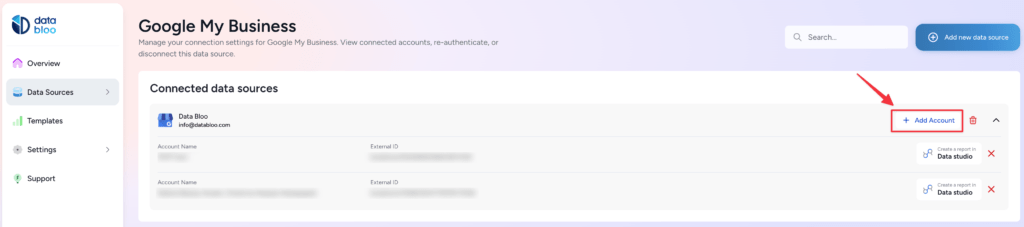
- Select Data Sources
- Click Add Account
- Re-Select your account(s) or click Skip
- This will generate a new access token automatically
- Reload your Data Studio report after reconnecting
Your reports should start working again once the new token is generated.
Invalid Field Combination
Description
The selected metrics cannot be requested together in the same API call. LinkedIn enforces strict rules on which metrics, dimensions, and breakdowns can be combined.
This usually happens when:
- Multiple incompatible breakdowns are selected
- Metrics from different reporting scopes are mixed
This is a LinkedIn API limitation, not a Data Bloo issue.
How to fix
- Remove conflicting metrics or dimensions
- Split your report into multiple charts
- Use simpler metric combinations per chart
Invalid Date Range
Description
The selected date range is not supported for the chosen time granularity (DAY or MONTH) or exceeds LinkedIn’s platform limitations.
Common causes include:
- Using a date range longer than LinkedIn allows
- Selecting future dates
- Using daily granularity over very long periods
How to fix
- Shorten the selected date range
- Ensure start and end dates are valid
- Switch to MONTH granularity for longer periods
- Refresh the report after updating dates
Request Too Large
Description
The request contains too many fields, filters, or breakdowns for LinkedIn to process in a single call. Large and complex queries can exceed LinkedIn’s processing limits.
How to fix
- Reduce the number of selected metrics
- Remove unnecessary breakdowns
- Split the report into multiple smaller charts
Request Timeout
Description
The request took too long to complete and was stopped by LinkedIn’s servers. This typically occurs with large date ranges, heavy breakdowns, or high‑volume Company Pages.
How to fix
- Reduce the date range
- Remove heavy breakdowns
- Split data into multiple charts or pages
Quota Limit Exceeded
Description
You have reached the maximum number of API requests allowed for your LinkedIn connection within a short time period. Frequent refreshes or large dashboards can quickly consume quota.
How to fix
- Wait for the quota to reset
- Reduce manual refresh frequency
- Simplify dashboards to lower API usage
Service Unavailable
Description
LinkedIn’s API or Data Bloo’s service is temporarily unavailable. This is usually caused by short‑term outages, maintenance, or network instability.
These issues are typically resolved automatically.
How to fix
- Wait a few minutes and try again
- Refresh the data source
- Contact Data Bloo support if the issue persists
Unexpected Error
Description
An unexpected error occurred while processing your request. This can be caused by temporary API issues, internal server errors, or unsupported edge cases.
How to fix
- Refresh the report
- Retry after a few minutes
- If the error persists, contact Data Bloo support with screenshots and error details
General Best Practices
- Keep charts simple and focused
- Avoid mixing too many metrics and breakdowns
- Use multiple charts instead of one complex query
- Prefer scheduled refreshes over frequent manual refreshes
- Use monthly granularity for long‑term reporting
If the issue persists, please contact us via www.databloo.com/contact and include screenshots so we can troubleshoot faster.
Did this answer your question?